
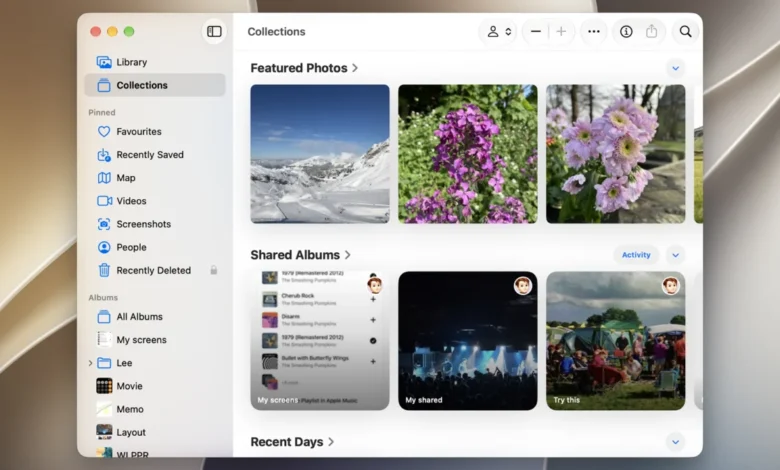
Securing digital memories has become a paramount concern for consumers in an era where smartphones capture millions of high-resolution images and videos daily. Among the various cloud storage ecosystems available, Apple Photos—integrated seamlessly with iCloud—remains one of the premier solutions for safeguarding precious captures, particularly for households deeply embedded in the Apple product ecosystem that spans iPhones, iPads, and Mac computers. While competitors like Google Photos offer robust cross-platform synchronization, mastering Apple Photos across multiple operating systems requires navigating a specific set of tools, settings, and workarounds. For users willing to establish an Apple account and invest in foundational iCloud storage tiers—which start at modest monthly subscriptions for 50 gigabytes of space—consolidating an entire multimedia library into Apple’s secure repository is entirely achievable, regardless of whether the primary device is an iPhone, a Windows PC, or an Android handset.
The evolution of consumer digital photography over the past two decades has fundamentally shifted how personal media is stored, managed, and protected. In the early days of digital cameras, memories lived on vulnerable physical hard drives, memory cards, and rudimentary desktop folders. The advent of cloud computing transformed this landscape, offering automated off-site backups that shield users against hardware failure, loss, or theft. Apple’s introduction of iCloud and the synchronized Photos application standardized this convenience for millions of mobile device users. However, as consumers increasingly adopt mixed-technology environments—such as owning an Android smartphone alongside a Windows desktop, or a MacBook alongside a corporate PC—bridging the gap between rival ecosystems to maintain a unified photo library has presented ongoing technical hurdles. Understanding the native capabilities and limitations of Apple Photos across iOS, macOS, Windows, Android, and the web is essential for maintaining a resilient, centralized photo archive.
Native Integration on iOS and iPadOS
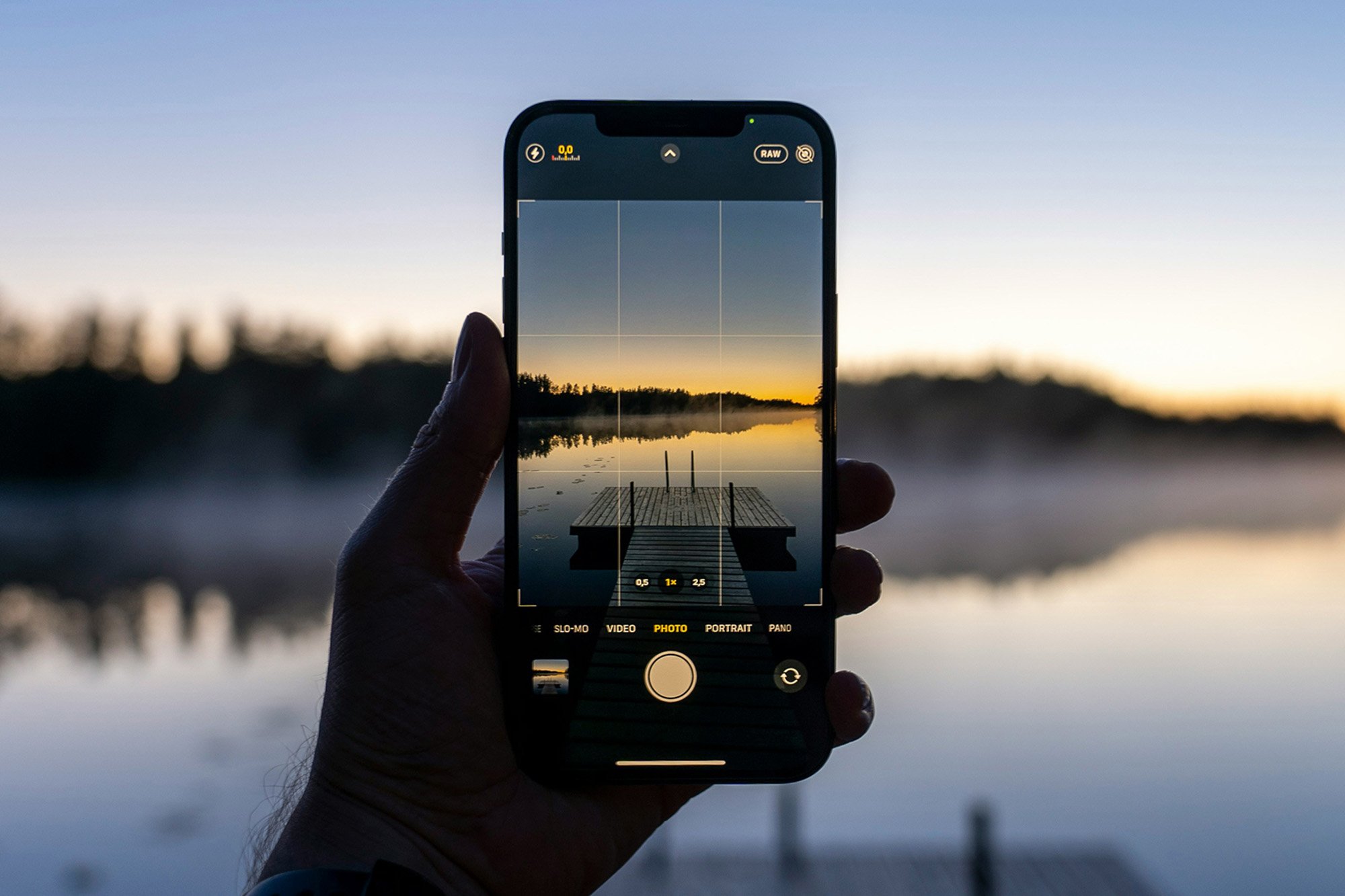
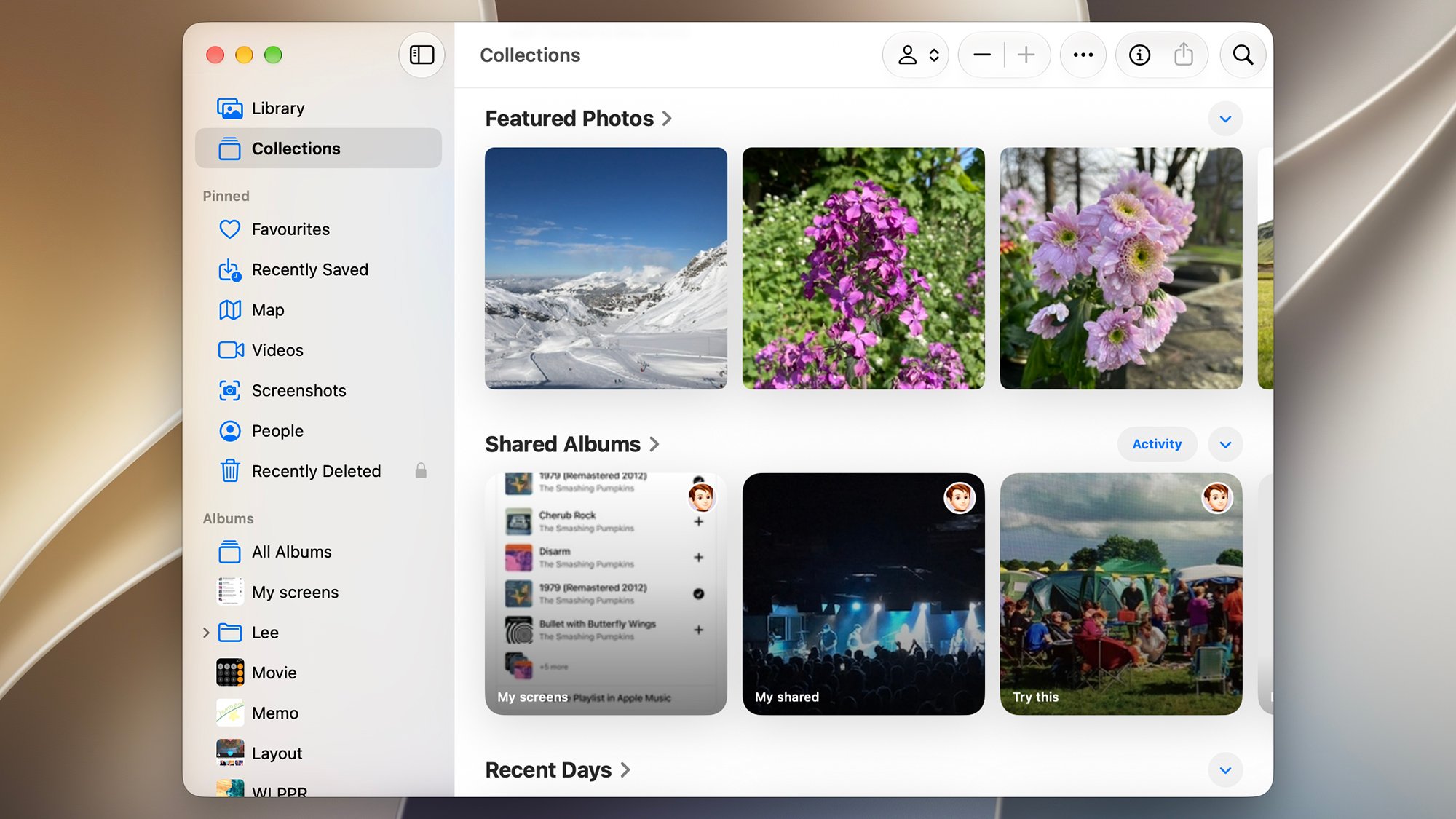
Apple engineers its mobile operating systems to make photo management virtually frictionless. For the vast majority of consumers, the iPhone serves as the primary capture device, rendering manual backups obsolete if configured correctly. Every image or video captured natively through the iOS Camera application routes directly into the local Photos app, which organizes content into chronological streams under the Library tab, alongside intelligent machine-learning groupings categorized by people, places, and significant events within the Collections tab.
To activate and verify cloud synchronization on iOS devices, users must navigate to the system Settings application, select their Apple Account profile, tap into iCloud, and ensure the Photos toggle switch is firmly enabled. This action initiates background uploads of full-resolution originals to the cloud while offering optimized storage settings on the local device. By enabling "Optimize iPhone Storage," the operating system intelligently replaces older, infrequently viewed full-resolution assets with space-saving device versions, retaining the master files safely within the iCloud infrastructure. This dynamic management ensures that users with smaller storage tiers on their mobile hardware can still house tens of thousands of memories in their digital portfolio without encountering capacity warnings.
Desktop Dominance on macOS
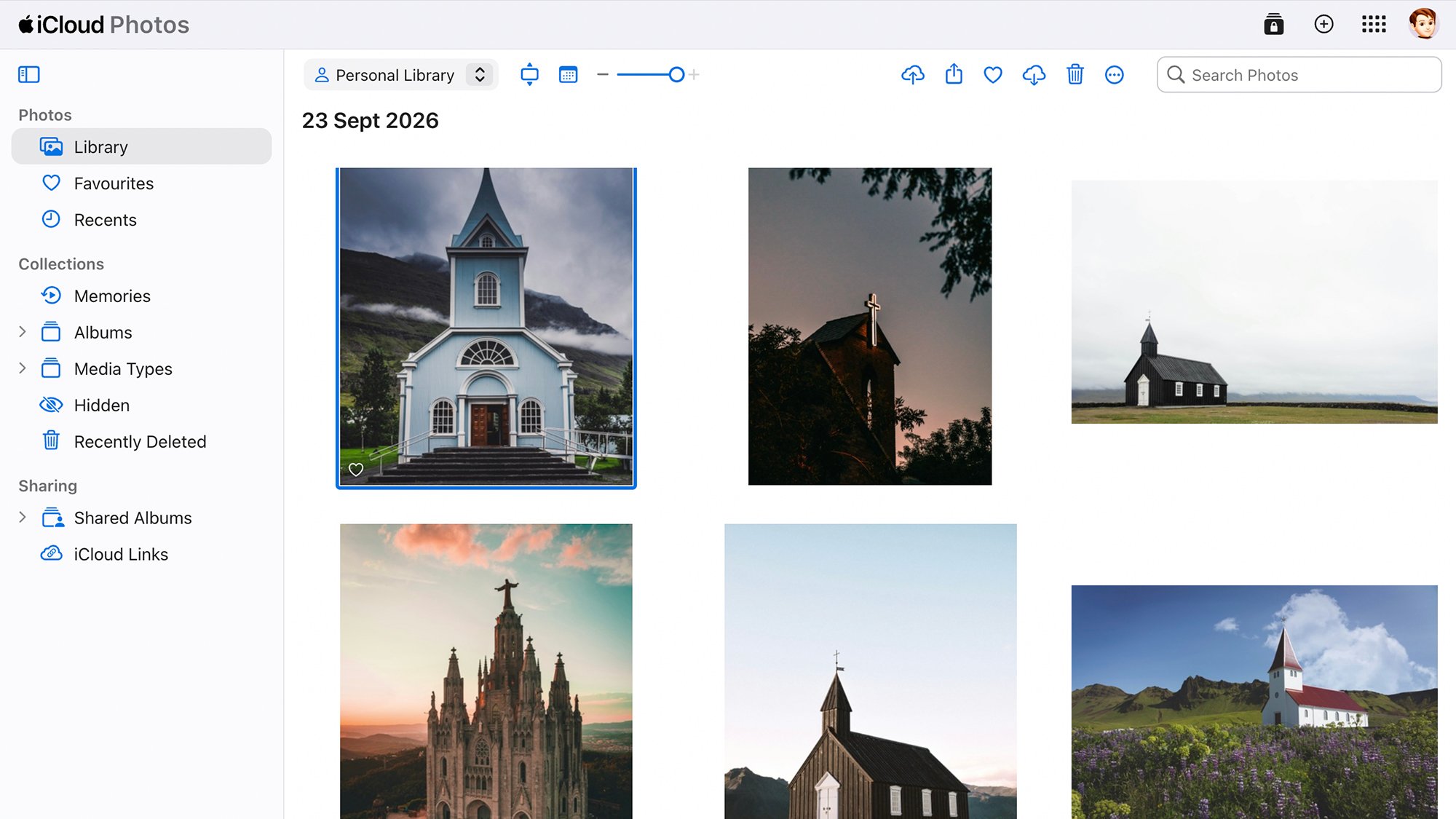
For users operating within the Apple desktop ecosystem, macOS provides the most robust and comprehensive management environment for Apple Photos. Functioning as the grand hub of the digital workspace, the Mac Photos app mirrors the structural layout found on iOS devices, offering granular left-hand navigation panes encompassing the Library, Collections, Favorites, and automated facial recognition clusters under People.
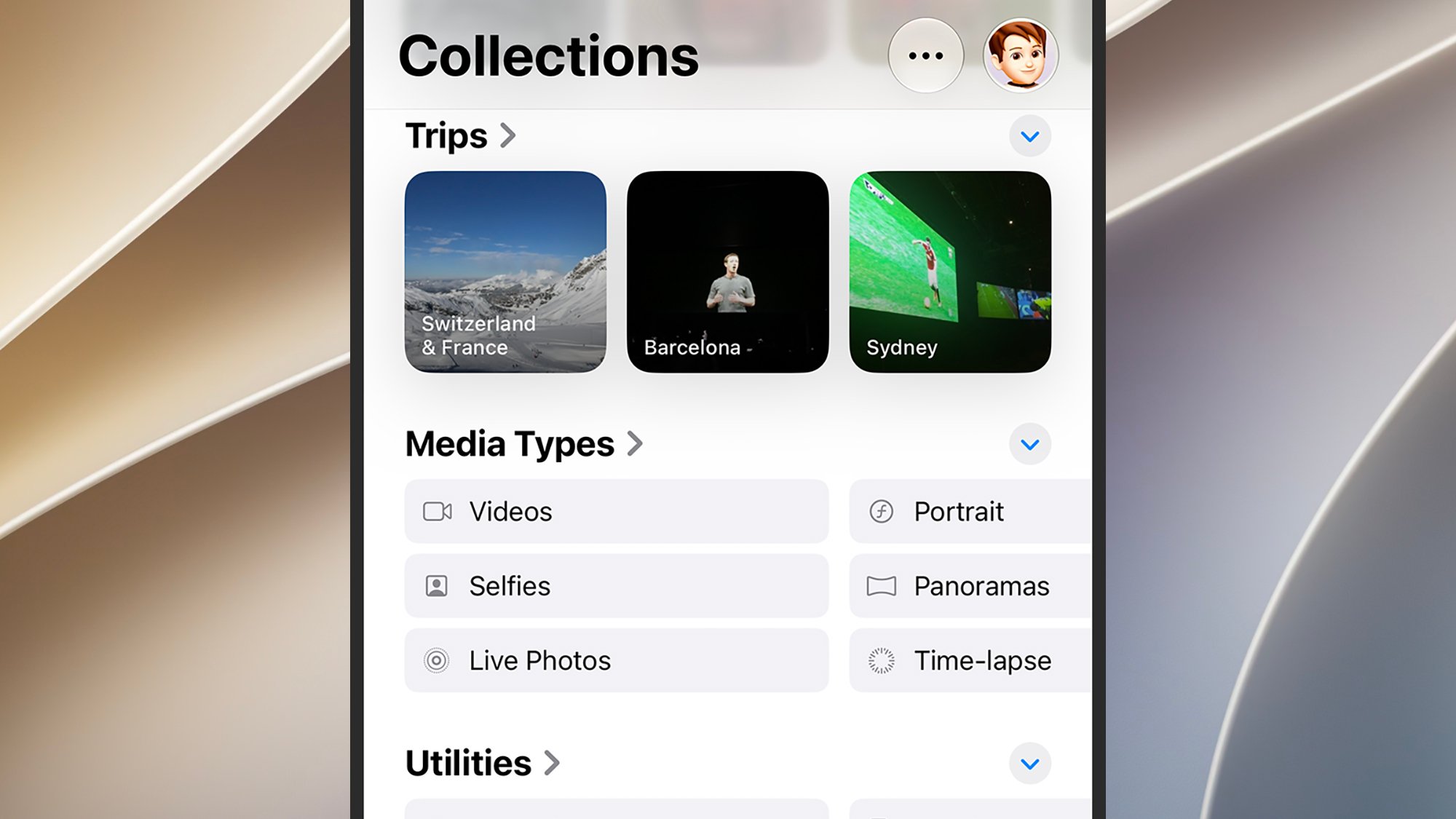
Beyond mirroring content captured via mobile devices, macOS excels at ingesting external media. Users seeking to consolidate historical archives originating from standalone digital cameras, external hard drives, or web downloads can easily integrate these assets by navigating to the top menu bar, selecting File, and clicking Import, or by simply dragging and dropping files and folders directly from Finder into the application window.
To maintain pristine synchronization discipline on a Mac, users should access Photos Settings, navigate to the iCloud tab to manage web backups and local file caching policies, and verify that the "Copy items to the Photos library" checkbox under the General tab is actively selected. This critical setting guarantees that any newly imported media is successfully packaged and transmitted to the cloud, preventing orphaned files from remaining solely on a local hard drive where they would be vulnerable to localized data loss.
Bridging the Gap via the iCloud Web Portal
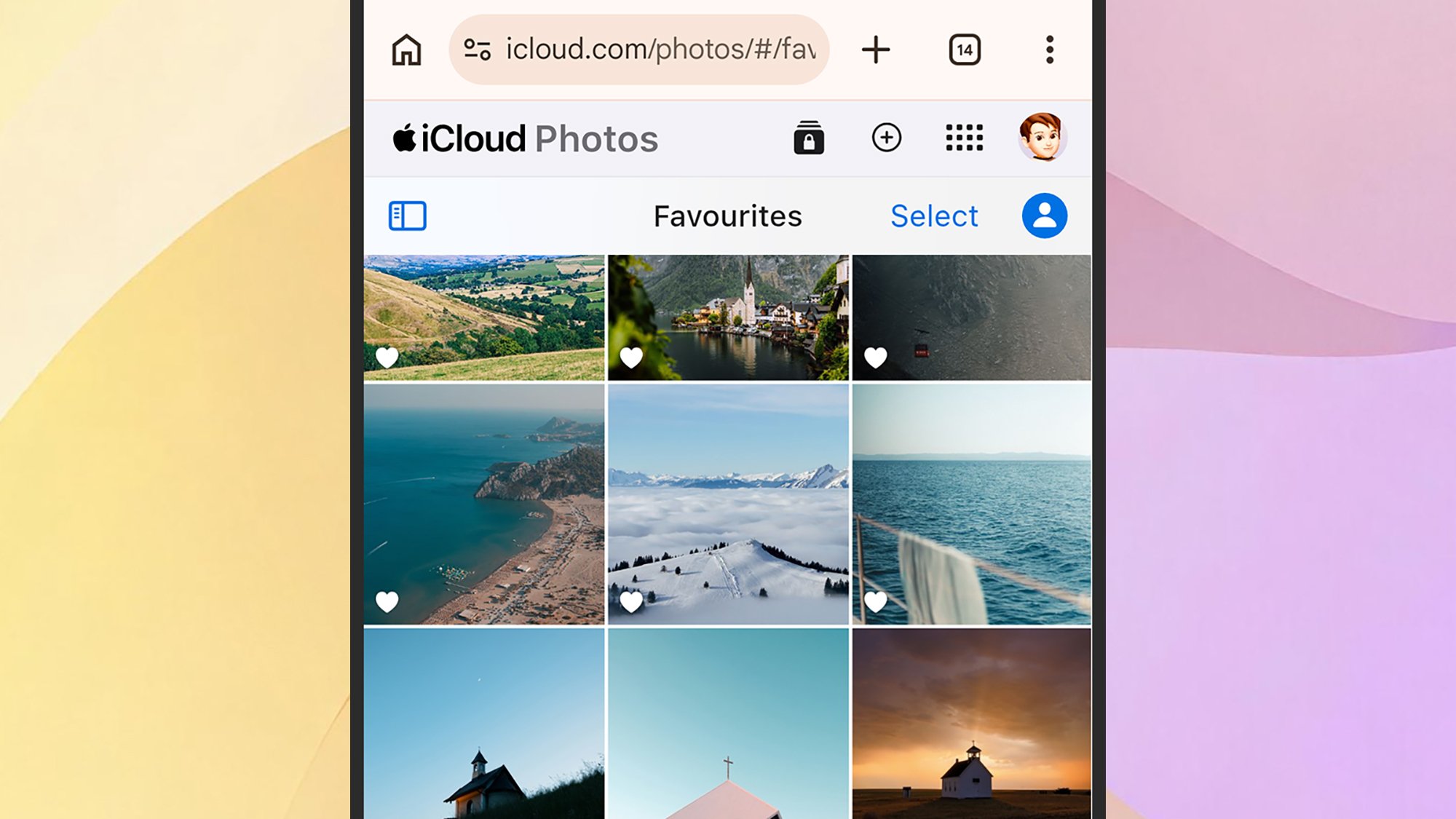
When operating away from primary Apple hardware—such as using an office workstation, a borrowed laptop, or a public terminal—accessing the Apple Photos ecosystem remains possible through the iCloud web portal. By authenticating a standard web browser at icloud.com using Apple credentials, users gain immediate, on-demand access to their entire backed-up multimedia library without requiring specialized software installation.
While the web-based version of Apple Photos lacks some of the advanced organizational metadata features found in native applications—such as the granular Collections tab for people and location groupings—it serves as an effective viewing and retrieval mechanism. Furthermore, the web portal incorporates a functional upload utility accessible via an intuitive cloud-arrow icon located in the upper navigation bar. This tool allows users to manually introduce new image files or video clips into their Apple repository from virtually any internet-connected machine equipped with a modern web browser, ensuring continuity of archiving regardless of the hardware at hand.
Navigating Cross-Platform Hurdles on Android
Integrating non-Apple mobile devices into the Apple Photos ecosystem remains one of the most significant friction points for consumers. Unlike music and video streaming services where Apple maintains dedicated Android applications, an official Apple Photos app for the Android operating system has not been developed. Consequently, Android users must rely on alternative workflows to bridge the divide.
The most direct official workaround involves utilizing a mobile web browser to access the aforementioned iCloud web portal. By logging into icloud.com directly from an Android handset, users can manually browse their remote library and execute manual uploads of newly captured camera roll items using the browser-based upload tool. However, this method lacks the convenience of automated, background synchronization. To achieve seamless automated backups from Android to Apple Photos, users frequently deploy intermediary cloud services—such as Google Photos or Dropbox—as a bridge. These services automatically sync mobile captures to a desktop computer running Windows or macOS, where the files can subsequently be ingested into the local Apple Photos library and synchronized up to iCloud.
Coexistence on Microsoft Windows
Despite historical corporate rivalries, Apple and Microsoft have cultivated functional pathways for cross-platform data sharing, making Apple Photos management surprisingly viable on Windows-based personal computers. Apple develops and maintains an official application titled "iCloud for Windows," available for download directly through the Microsoft Store. This utility establishes a secure bridge between Apple’s cloud infrastructure and Windows environments, permitting users to sync not only photos and videos but also iCloud Drive documents, passwords, calendars, and contacts.
When the iCloud photo sync feature is enabled within the Windows application, the user’s remote Apple Photos library integrates natively into the Microsoft Photos application pre-installed on the operating system. This allows Windows users to view, manage, and supplement their Apple library directly within a familiar Microsoft interface. Through the primary iCloud for Windows dashboard, users retain complete control over local storage allocation, permitting them to designate specific local folders for photo storage and adjust file quality parameters to match hardware capabilities. Alternatively, Windows users who prefer to minimize local storage consumption can bypass the desktop application entirely, relying instead on the aforementioned web browser approach for manual file management.
Broader Industry Implications and Data Security
The ongoing evolution of consumer photo management reflects a broader technological shift toward ecosystem lock-in and centralized cloud dependency. As smartphone manufacturers deploy increasingly sophisticated computational photography algorithms—capturing deeper color profiles, high-dynamic-range metadata, and spatial video formats—the file sizes associated with personal memories have expanded exponentially. This growth places mounting pressure on consumer cloud storage infrastructure, driving recurring subscription revenue models for technology providers while raising consumer stakes regarding data portability and platform migration.
Industry analysts note that while proprietary ecosystems like Apple Photos offer superior user experience, optimization, and cross-device continuity for brand loyalists, they simultaneously create barriers for consumers who prefer mixed-device households. The lack of an official Apple Photos application for Android, for instance, underscores a strategic imperative to retain users within the proprietary hardware fold. Nevertheless, the gradual expansion of web-based access portals and third-party desktop integrations demonstrates a pragmatic acknowledgment of multi-platform realities. As digital archives continue to swell into multi-terabyte repositories, consumer reliance on transparent, secure, and flexible synchronization tools will remain a defining factor in how individuals preserve their digital histories for decades to come.
Related posts: